Tag Archives: SPI

Nokia 3410 LCD on the STM32

et-arm-stm32-nokia-lcd-1.jpgThe Nokia LCD displays are among my favourite toys. Generally, I use a monochrome display intended for the Nokia 3410 ‘phone. This a display size of 96 x 48 pixels and can display bitmaps as well as text in 6 rows of 16 characters. It is smaller than the more common 16×2 text-only displays, easier to drive, cheaper, uses fewer connections, much more flexible and is readily available. And now, I have connected one up to my STM32F103 Cortex-M3 processor. As a first go with the SPI peripheral on these processors, it has been quite instructive…

There are plenty of other places to go and find out about he Nokia displays SPI in general. There is a short list at the end of this post. Here I just want to look at the business of getting the SPI going on the STM32. As with the other examples here, I have used the ST Peripheral Driver Library and its functions relating to the SPI peripheral. No attempt has been made to bypass these to talk to the hardware as they are fast enough for my purposes and give the promise of some portability.

et-arm-stm32-nokia-lcd-1.jpg

For this example, the LCD is connected to the SPI1 port which uses pins on Port A. These are:

Pin name   SPI Function   Nokia Function
PA4   SPI1_NSS   Display Select
PA5   SPI1_SCK   Serial Clock
PA6   SPI1_MISO   Data/Command
PA7   SPI1_MOSI   Serial Data
PA3   none   Display Reset

The SPI functions of these pins are in the alternate function set. that is, after a reset, the pins work as plain GPIO pins so the appropriate settings need to be made to the port. the Nokia display is a write-only device so there is no use for the MISO pin and it can be used as a GPIO to drive the Data/Command select pin of the display. Similarly, the Slave Select pin, SPI1_NSS, will be set in software and so can be left as a GPIO. That leaves only two of the dedicated SPI pins used for their SPI function. First then, the ordinary GPIO pins are configured:

  SPI_InitTypeDef  SPI_InitStructure;
  GPIO_InitTypeDef GPIO_InitStructure;

  /* Enable SPI1 and GPIO clocks */
  RCC_APB2PeriphClockCmd( RCC_APB2Periph_SPI_NOKIA, ENABLE);
  RCC_APB2PeriphClockCmd(RCC_APB2Periph_GPIO_NOKIA, ENABLE);

  GPIO_InitStructure.GPIO_Pin = GPIO_Pin_CS | GPIO_Pin_DC | GPIO_Pin_RST;
  GPIO_InitStructure.GPIO_Speed = GPIO_Speed_50MHz;
  GPIO_InitStructure.GPIO_Mode = GPIO_Mode_Out_PP;
  GPIO_Init(GPIO_LED, &GPIO_InitStructure);

Then the Alternate function is setup for the SCK and MOSI pins:

  /* Configure SPI1 pins: SCK and MOSI only to their Alternative (SPI) function */
  GPIO_InitStructure.GPIO_Pin = GPIO_Pin_SCK | GPIO_Pin_MOSI;
  GPIO_InitStructure.GPIO_Mode = GPIO_Mode_AF_PP;
  GPIO_InitStructure.GPIO_Speed = GPIO_Speed_50MHz;
  GPIO_Init(GPIO_NOKIA, &GPIO_InitStructure);

At this point, the display can be initialised by holding down the reset line for at least 10us. The Chip select is normally left high in case anoher peripheral is sharing the SPI port.

/* Deselect the display Chip Select high */
  SPI_NOKIA_CS_HIGH();
  SPI_NOKIA_RST_LOW();
  delay(100000);
  SPI_NOKIA_RST_HIGH();

Finally, the SPI port itself is configured:

  /* SPI1 configuration */
  SPI_InitStructure.SPI_Direction = SPI_Direction_2Lines_FullDuplex;
  SPI_InitStructure.SPI_Mode = SPI_Mode_Master;
  SPI_InitStructure.SPI_DataSize = SPI_DataSize_8b;
  SPI_InitStructure.SPI_CPOL = SPI_CPOL_High;
  SPI_InitStructure.SPI_CPHA = SPI_CPHA_2Edge;
  SPI_InitStructure.SPI_NSS = SPI_NSS_Soft;
  SPI_InitStructure.SPI_BaudRatePrescaler = SPI_BaudRatePrescaler_16;
  SPI_InitStructure.SPI_FirstBit = SPI_FirstBit_MSB;
  SPI_InitStructure.SPI_CRCPolynomial = 7;
  SPI_Init(SPI1, &SPI_InitStructure);
  /* Enable SPI1  */
  SPI_Cmd(SPI1, ENABLE);

This code is taken straight out of one of the ST example programs. Notice that the SPI runs as a master device with a clock divisor of 16 which gives a clock rate of (72/16) = 4.5MHz. Also, the NSS line is set for software control. I didn’t check the SPI mode used by the port but it is correct for a Nokia 3410 display. Also lifted from an ST example was the code needed to send an 8 bit value to the display. However, this seemed to have a bit of a problem. This is similar to the issue I have had with the SPI peripheral on the dsPIC. The routine started by waiting until the transmit buffer was empty before trying to dump the byte into it. That is a precondition but, with a slow SPI clock, it was possible to load up the buffer before the preceding transfer was finished. That would cause the final test to return prematurely and the caller would release the slave select line before the slave had got all the data. What is really needed is a way to tell if the transmit shift register is empty. On the face of it, waiting for the receive buffer to fill should do the trick but if it has not been read after a previous transfer, the RXNE flag will still be set, the test succeeds and the previous value is read while the current one carries on shifting in. As a temporary fix, I added a single line to the beginning to perform a dummy read from the receive buffer and reset the RXNE flag:

/**
  * @brief  Sends a byte through the SPI interface and return the byte
  *   received from the SPI bus.
  * @param byte : byte to send.
  * @retval : The value of the received byte.
  */
u8 SPI_NOKIA_SendByte(u8 byte)
{
  SPI_I2S_ReceiveData(SPI1);
  /* Loop while DR register in not emplty */
  while (SPI_I2S_GetFlagStatus(SPI1, SPI_I2S_FLAG_TXE) == RESET);
  /* Send byte through the SPI1 peripheral */
  SPI_I2S_SendData(SPI1, byte);
  /* Wait to receive a byte */
  while (SPI_I2S_GetFlagStatus(SPI1, SPI_I2S_FLAG_RXNE) == RESET);
  /* Return the byte read from the SPI bus */
  return SPI_I2S_ReceiveData(SPI1);
}

This works although I am not happy about it. It seems like a terrible kludge and I shall have to find a more elegant way to do this. The return value will be ignored as nothing gets sent back from the display but it is kept here as a reminder for any other use at a later date. Data sent to the display will be either a data byte or a command byte. Here are the two functions that do that:

void nokiaCmd( int c )
{
  SPI_NOKIA_CS_LOW();         // Select the device
  SPI_NOKIA_DC_LOW();         // sending data
  (void)SPI_NOKIA_SendByte( c );
  SPI_NOKIA_CS_HIGH();         // Deselect the device
}

void nokiaData( int c )
{
  SPI_NOKIA_CS_LOW();         // Select the device
  SPI_NOKIA_DC_HIGH();        // sending data
  (void)SPI_NOKIA_SendByte( c );
  SPI_NOKIA_CS_HIGH();        // Deselect the device
}

the control line toggling is done with a set of macros:

#define SPI_NOKIA_CS_LOW()        GPIO_ResetBits(GPIO_NOKIA_CS, GPIO_Pin_CS)
#define SPI_NOKIA_CS_HIGH()       GPIO_SetBits(GPIO_NOKIA_CS, GPIO_Pin_CS)

#define SPI_NOKIA_DC_LOW()        GPIO_ResetBits(GPIO_NOKIA_DC, GPIO_Pin_DC)
#define SPI_NOKIA_DC_HIGH()       GPIO_SetBits(GPIO_NOKIA_DC, GPIO_Pin_DC)

#define SPI_NOKIA_RST_LOW()       GPIO_ResetBits(GPIO_NOKIA_RST, GPIO_Pin_RST)
#define SPI_NOKIA_RST_HIGH()      GPIO_SetBits(GPIO_NOKIA_RST, GPIO_Pin_RST)

The rest of the display code is all well proven and I have been using t for some time. it is based on code originally written, I think by Sylvain Bissonnette. Try these references for more information about the Nokia 3310/3410 displays:


Continue reading

Posted in STM32 | Tagged | 10 Comments

dsPIC serial ports

In general the dsPIC is well blessed with peripherals. The dsPIC30F6015 I am using at the moment has two serial ports in addition to a couple of SPI ports and an I2C port. These UARTs seem pretty easy to use as well. Still, like other peripherals on the dsPIC, they still found a way to catch me out. My own fault for not reading the data sheet properly. The trick here is to realise that there are FIFO buffers associated with the ports.

I had found myself sharing the function of the SDO1 pin with U1TX. This was short-sighted on my part and I shan’t be doing it again if I can help it.  Consequently, when I want to send data on the serial port, I have to turn off the SPI port and vice versa. This is not too much of a hardship but it is a bit irritating. It soon became apparent that I was loosing characters from the serial port whenever I turned it off. In fact I was losing four characters. After a bit of thought I checked with the data sheet and discovered the FIFO buffer. Originally the code to switch off the serial port looked like this:

void serialOff(void){
  U1MODEbits.UARTEN = 0;    // disable the uart
  U1STAbits.UTXEN = 0;      // disable transmission
  serialEnabled = 0;
}

This immediately disabled the port and made the U1TX pin available for other purposes. The UART transmit function looked like this:

int putUART(char c)
{
  if (serialEnabled){
    while (U1STAbits.UTXBF);  // wait for room in the transmit buffer
    U1TXREG = c;
  }
  return 0;
}

Even though I had left a clue in the comment, I ignored what the UTXBF flag really meant. According to the data sheet it just means that the output buffer has room in it. After the transmit shift register empties, hardware signals, through this flag, that there is at least one space available. A very convenient feature but, of course, turning off the serial port, can leave up to four characters still in the buffer and not transmitted. Further examination of the data sheet show another flag, U1STAbits.TRMT, which is set if there are no more characters in the buffer and the transmit shift register is empty. It is a simple enough matter to make the serialOff() function wait for the buffer to empty before disabling the port:

void serialOff(void){
  while (!U1STAbits.TRMT);  // wait for the transmit buffer to empty
  U1MODEbits.UARTEN = 0;    // disable the uart
  U1STAbits.UTXEN = 0;      // disable transmission
  serialEnabled = 0;
}

Continue reading

Posted in dsPic | Tagged , , , , | Leave a comment

Decimus hardware fix

It was all getting too awkward. A bit of short sighted design on my part had the Nokia LCD sharing an SPI port with the motor encoders. This meant that I had to turn off the encoders to write to the LCD. While no motion information would be lost by doing this, it effectively meant that I could not, for example, have the mouse hold position while updating the display. In the end I took it all apart and patched the circuit board so that the LCD is now driven from the SPI1 port and the encoders are on the SPI2 port.

SCK1 patchIt only needed two wires as the LCD needs just the SCK and SDO lines form the port. The SDO1 line is shared with the UART1 serial port TXD line. This should not cause any trouble since it is un;likely that I would want to talk to the LCD and the serial port simultaneously. In fact, I rarely use the serial port on the mouse for anything. It is used if ever I want to upload the map from the micromouse to a PC or if I want to dump serial data. In either case, it will not be much fuss (I think) to switch the port pin from SPI to UART.

If I had just thought this out a bit in advance, the dsPIC30F6015 has enough ports that I need not share any. Perhaps on the next mouse….

SDO1 patchSoldering in the patches was not too bad. the SCK1 pin was unused and I managed to solder directly to it with a length of polyurethane insulated copper wire. I give thanks to the elm-chan site for showing that this was not only possible but can be raised to a high art. Conveniently, the lines in question went through vias giving an ideal connection point. On the other side, it was easy enough to patch onto the serial port TXD line.

Continue reading

Posted in Micromouse | Tagged , , , | 5 Comments

LS7366 quadrature counter

The LS7366 is a 32 bit counter with a direct interface for quadrature signals from incremental encoders. There is also an index channel for marker functions. The interface to the microcontroller is SPI mode 0 making it relatively easy to drive with a variety of common controllers. Decimus has one of these on each motor channel connected to the encoders on the back of the Faulhaber 2224 coreless motors. There is very little information about these chips available except the data sheet. This is how they are used on Decimus.Interface to the encoders is very easy as the phase inputs can be connected directly to the chip. A clock signal must be provided for the counter and I used the same 8MHz oscillator that drives the processor on Decimus. the clock will need to be less than 40MHz in a 5V system and must be greater than 4 times the maximum count frequency. Even at a speed of 5m/s Decimus will only be generating encoder pulses at about 140kHz so there is plenty of margin.The counter is very flexible and can be configured for x1, x2, x4 and non-quadrature counting and the counter register may be set to 8, 16, 24 or 32 bits in size. Selecting x1 decoding will give 512 counts per revolution of the motor shaft and 2048 counts per revolution of the wheel. For this application, the counter width will be set to 8 bits. This is the fastest to read back from the counter and has sufficient range for my needs. With a single byte counter, the maximum difference in counts that can be reliably detected between two reads is 127. Since each count on Decimus is 24mm * pi / 512 * 4 or about 0.04mm. The control loop runs at 1KHz so the maximum recordable speed would be 127 * 0.04mm / 1ms which is around 5m/s. Practically speaking, the mouse would almost never be able to reach such a speed in the maze and the top speed will be limited to no more than 4m/s by the control loop.Configuring the chip is a question of sending a number of values to internal registers over the SPI. Here is a code fragment for the mouse initialisation:

CNTR_LEFT_SEL = 0;                              // start a command
SPI_putc(WR + MDR0);                            // write MDR0
SPI_putc(CLOCK_DIV_2 + FREE_RUN + CNT_MODE_X1); // free-running, x1 decoding
CNTR_LEFT_SEL = 1;                              // end this command
asm("nop");asm("nop");asm("nop");               // delay between commands
CNTR_LEFT_SEL = 0;                              // start next command
SPI_putc(WR + MDR1);                            // write MDR1
SPI_putc(COUNT_ENABLE + CNTR_WIDTH_1);          // enabled, single-byte
CNTR_LEFT_SEL = 1;                              // end command
asm("nop");asm("nop");asm("nop");               // delay between commands
CNTR_LEFT_SEL = 0;                              // start next command
SPI_putc(CLR + CNTR);                           // clear the counter
CNTR_LEFT_SEL = 1;

The only real ‘gotcha’ was not noticing that after each command the select line must be raised to complete the command then lowered again for the next command. There is a minimum time the line must be held high, hence the ‘NOP’ instructions. The setup and hold times for the select line are easily met by the overhead of the function call for the SPI_putc() function.Reading the counter is also quite straightforward. A command is sent to read the counter. This transfers the current counter value to the output register and the next write to the chip clocks out that register. You must perform as many reads as there are bytes. Remember that the data comes out MSB first so you can’t just read the low bytes and ignore the rest. Like all SPI systems, a byte has to be sent so that you can get a byte back as transfers occur simultaneously in both directions. So for example, if the counter were set up for a 16 bit width, the current value can be read with code like this:

CNTR_LEFT_SEL = 0;
SPI_putc(RD + CNTR);      // transfer CNTR to OTR and prepare to read
temp1 = SPI_putc(0x00);   // send a dummy byte to get the first byte back
temp1 = (temp1 << 8);     // we get the high byte first
temp1 += SPI_putc(0x00);  // another dummy byte gets the lower byte returned
CNTR_LEFT_SEL = 1;

This is fairly quick. Reading both encoders in 16 bit mode takes just under 30us on Decimus with the SPI running a 4MHz clock. Continue reading

Posted in Micromouse | Tagged , , , | 20 Comments

SPI data transfers

I use SPI  on my micromouse both to talk to the Nokia graphical LCD and to talk to the LS7366 quadrature encoders. A large number of devices can be connected to the SPI data lines, MOSI and MISO. Each device needs its own select line. This all appear very simple and friendly. There is, however a potential problem due to the flexibility of the SPI configuration.

Aside from the device select line, three wires are used to transfer data between a a master and a slave. MOSI is the Master-Out-Slave-In line while MISO is the Master-In-Slave-Out. There is also a clock signal SCK. Data transfers occur simultaneously on the data lines and the clock edges are used to shift and latch the data at each device. Now rather than have a single standard for which clock edges do what, there are four possibilities:

Mode 0:
The clock is active high, data latched on the rising edge, data clocked out on the falling edge.

Mode 1:
The clock is active high, data  latched on the falling edge, data clocked out on the rising edge.

Mode 2:
The clock is active low, data latched on the falling edge, data clocked out on the rising edge.

Mode 3:
The clock is active low, data latched on the rising edge, data clocked out on the falling edge.

Note that some microcontrollers may not be able to set up their SPI peripheral in all of these modes and may be limited to just one – probably Mode 0

Confused yet? So am I.

Let’s have a look at the data sheet for the LS7366. On the very first page it says

Received bytes are shifted in [latched] on MOSI with the leading edges (high transition) of SCK. Output data is shifted out on MISO with the trailing edges of the SCK clocks.

Figure 2 of the datasheet has a timing diagram and the statement that SCK is idle low. This then is operating in Mode 0.

In itself, this is not a big deal but if you have other devices using the same SPI port, it will be important to know if they also use Mode 0 or will require reconfiguration of the port for use with each device.

The Nokia display uses the same protocol as the PCD8544 chip on the Nokia 3310 displays. The data sheet for this says, at the beginning of section 8, ‘SDIN is sampled at the positive edge of SCLK’ . So far then, it could be either Mode 0 or Mode 3. Fortunately, Figure 12:

nokiaSPI 

Makes it reasonably clear we are dealing with Mode 0 again. Note that the Nokia display only accepts data and cannot communicate back to the master device.

Having both devices use Mode 0 will make it all that bit easier to talk to them.

Find out more here:

Introduction to Serial Peripheral Interface [embedded.com]

SPI – Serial Peripheral Interface [mct.net]

SPI, Microwire and I2C Protocol Formats [uspros.com]

About SPI [elm-chan.org]

Continue reading

Posted in Hardware | Tagged , , , , , , , | 2 Comments

Adding a timer and the graphical LCD

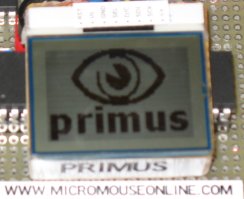
primus micromouse splash screenThis is a fairly big jump. With the LEDs and buttons tested, it is time to add the main graphical display, made from a Nokia cellphone display. Also, there is the main system timer event.

The simple user IO is working, and it is time to add a system timer. This will generate an interrupt every millisecond. In the final mouse a lot of work will be done in here – processing buttons, driving the LEDs, reading sensors and calculating drive signals for the motors.While that may seem a lot in a millisecond, the dsPIC used in primus can execute about 16,000 instructions in that tme and we should only need a small proportion of that time.Another function of the timer will be to maintain an internal clock so that the main program can time events and produce more reliable delays without holding up everything else. We shall continue to use the already present delay functions when it is acceptable for delays to be a bit rough, very short (less than 100us) or when the blocking behaviour is not going to cause any problems. The interrupts from the system clock will make the software delay functions run slow – possibly very slow so they can no longer be relied upon for anything but the simplest, non-demanding tasks.The system timer interrupts come from a 16 bit timer which will run continuously as long as the mouse is turned on. Since actually configuring the timer is pretty simple, this example will make use of the timer to debounce button presses, flash the LEDs and produce tones from the speaker. Trivial really.As with the other examples, the timer has its own source code module and header. Unlike the others, it is a relatively high-level module and must be able to call functions defined for the LEDs and buttons, and later for the sensors and motors.While we are at it, the nokia LCD is working. The test code should display a start up message followed by the Primus splash screen when you press a button. After that, pressing buttons will change the picture. This is just to show off the fact that it works. The LCD will become an essential tool in debugging and setting up so don’t leave it out.While the demo code displays pictures, these take up quite a bit of flash memory – about 760 bytes each – and they are not really needed. I like to put a splash screen up after a restart – just because I can. The images are a bit of a fiddle to create. I make a 2 colour image in PaintShop and save it as a RAW image file. A utility I have will read that file and convert it into the C definition you see in the source code.Remember that the display I have has 96×65 pixels. Try to get the right one if you are to avoid re-writing some of the driver code. Actually, the text stuff will work fine but you get shorter lines and fewer of them so take care.The complete project for MPLAB contains all the source code, the object files and som HTML documentation generated by Doxygen.Primus3.zip Continue reading

Posted in Primus | Tagged , , | Leave a comment